
By linking an Epic Games account, you can use the Cross-Save feature across different platforms.
To use the Deluxe Edition bonuses on another platform via Cross-Save, you'll need to either purchase the Deluxe Edition again on that platform, or if you already own the Standard Edition there, purchase the Edition Upgrade.
If you're playing on a platform where only the Standard Edition is owned, the bonus content will not be available.
However, you can access the bonuses again by returning to the platform where you originally purchased the Deluxe Edition.
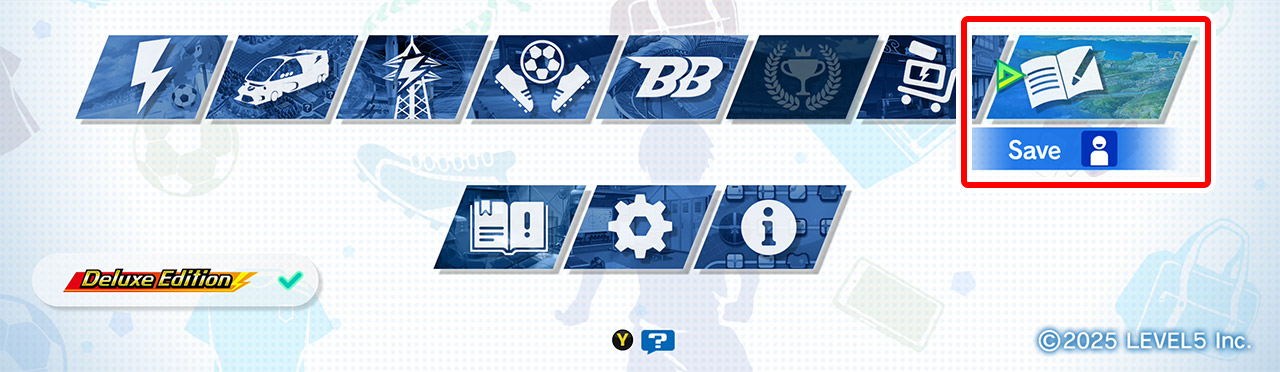
Open "INAZUMA ELEVEN: Victory Road" on the platform from which you would like to upload Cross-Save data, then select "Save" from the Title Menu.
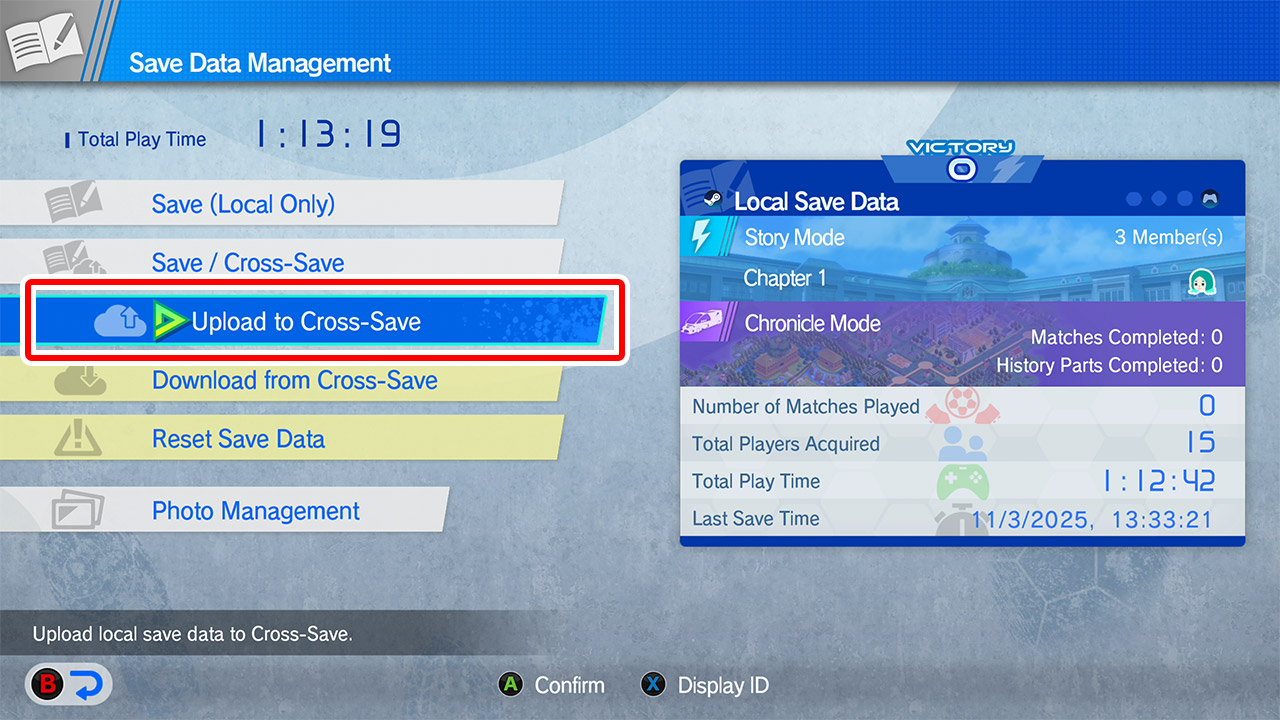
From the "Save Data Management" menu, select "Upload to Cross-Save" and follow the on-screen instructions.
On each platform, follow the steps below to access the Epic Games account sign-in screen, then follow the on-screen instructions to sign in using your preferred method.
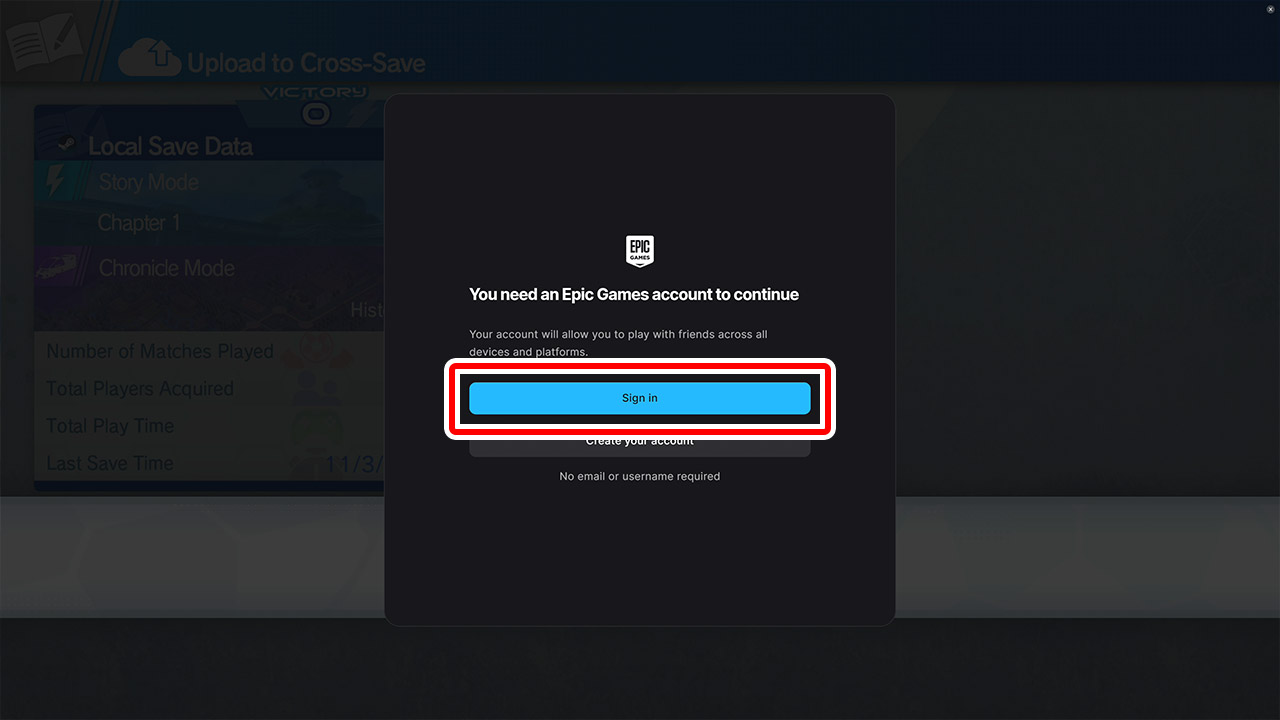
Press "Sign In" to continue.
Scan the QR code with your preferred device.
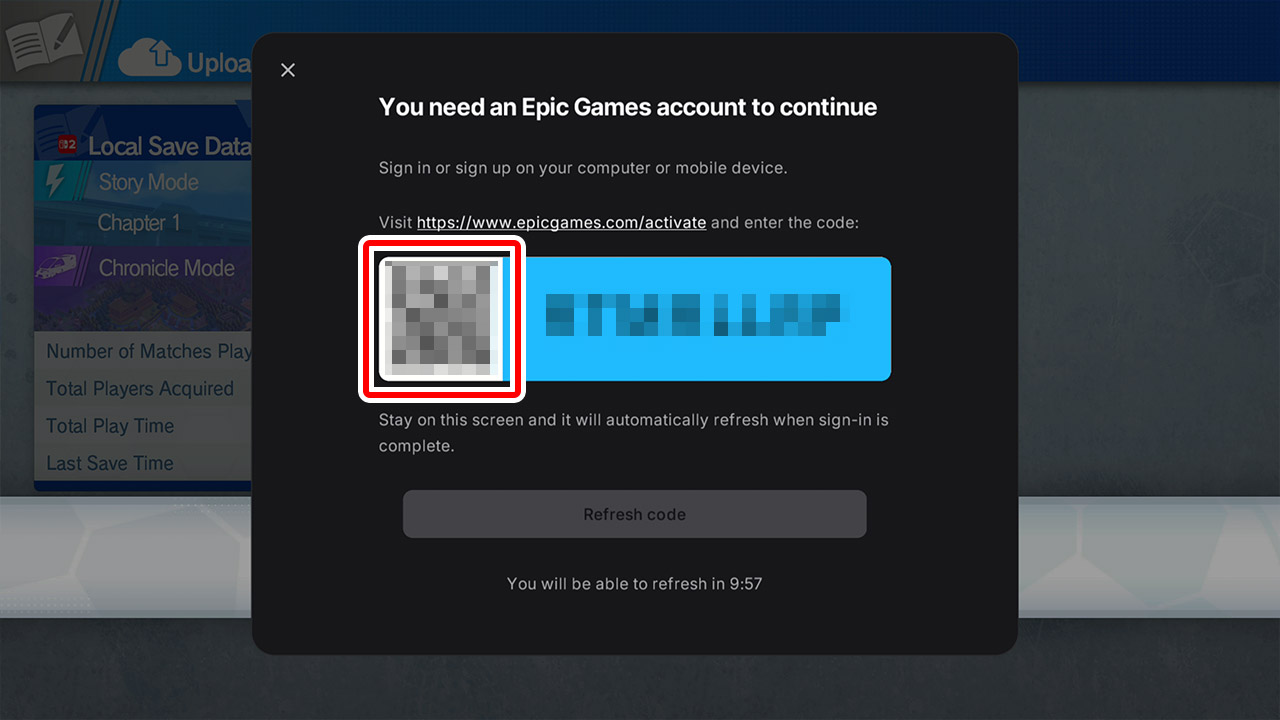
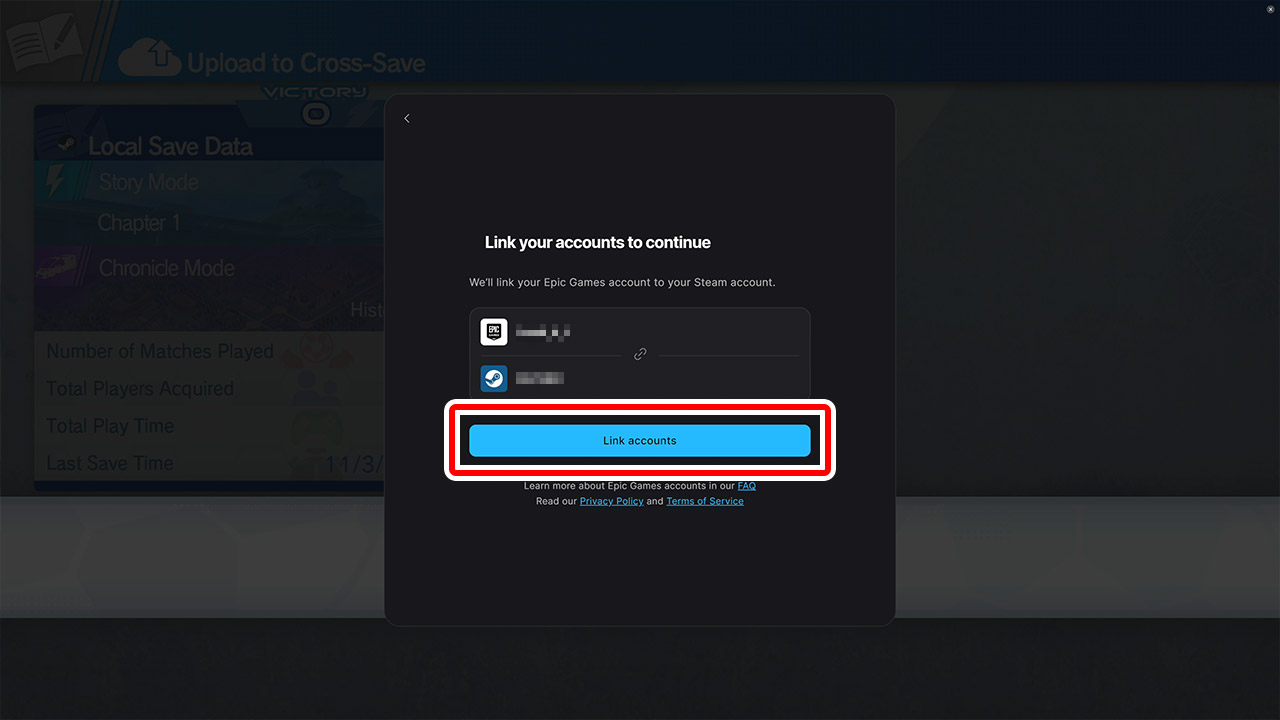
After signing in on your device, the account linking screen will appear. Please follow the steps below for each platform to link your Epic Games account.
Select "Link Accounts".
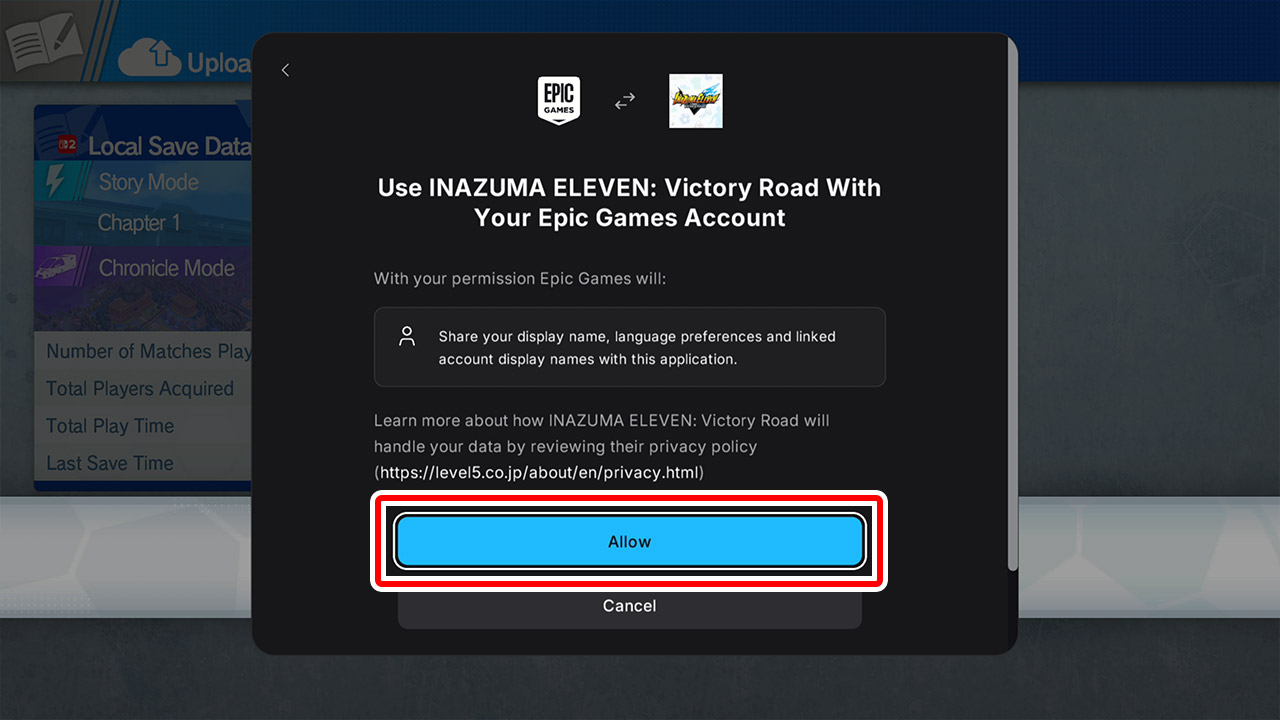
When the screen asking to authorize the link appears in the game, select "Allow".
After linking, on the screen that says "Upload save data to Cross-Save," press and hold the button to select "Yes".
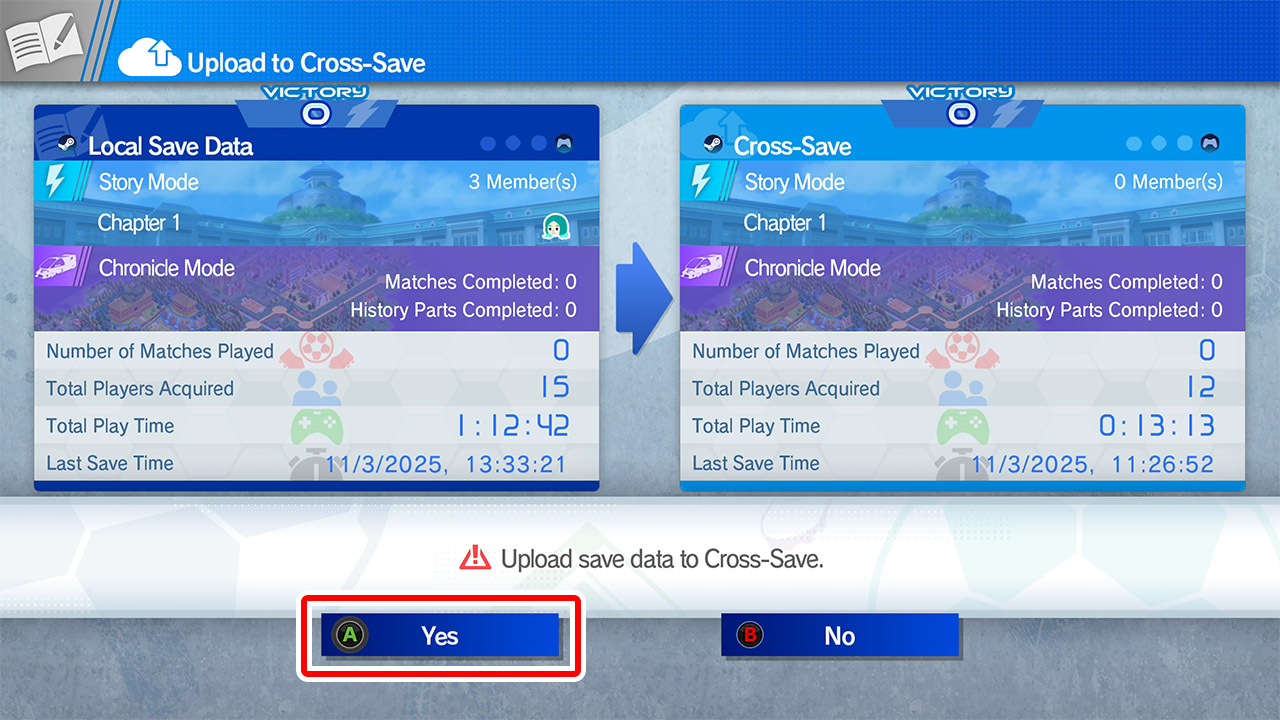
If the message "Overwrite complete" appears, the upload was successful.
Open "INAZUMA ELEVEN: Victory Road" on the platform from which you would like to upload Cross-Save data, then select "Save" from the Title Menu.
From the "Save Data Management" menu, select "Upload to Cross-Save" and follow the on-screen instructions.
On the screen that says "Upload save data to Cross-Save," press and hold the button to select "Yes".
If the message "Overwrite complete" appears, the upload was successful.
Your Epic Games account must be linked to both the platform from which you are uploading Cross Save data, and the platform on which you wish to access the save data.
Once your account is successfully linked, please proceed to the following steps.
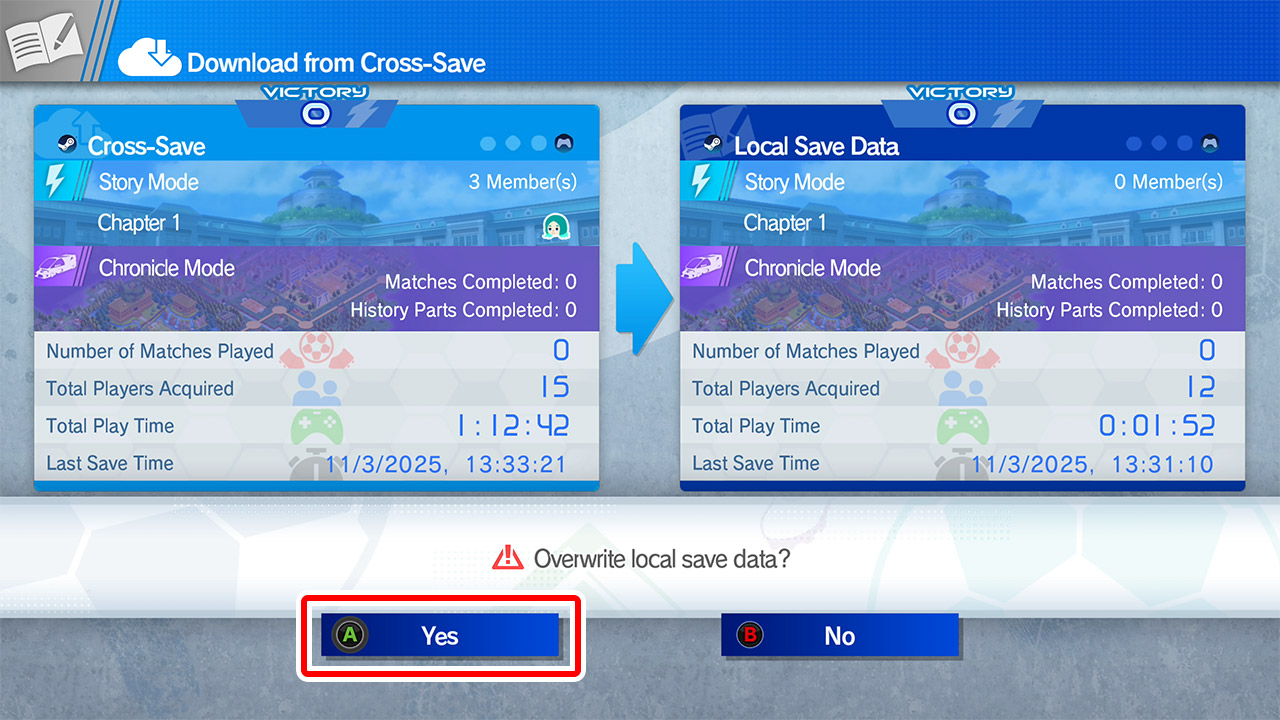
From the "Save Data Management" menu, select "Download from Cross-Save".
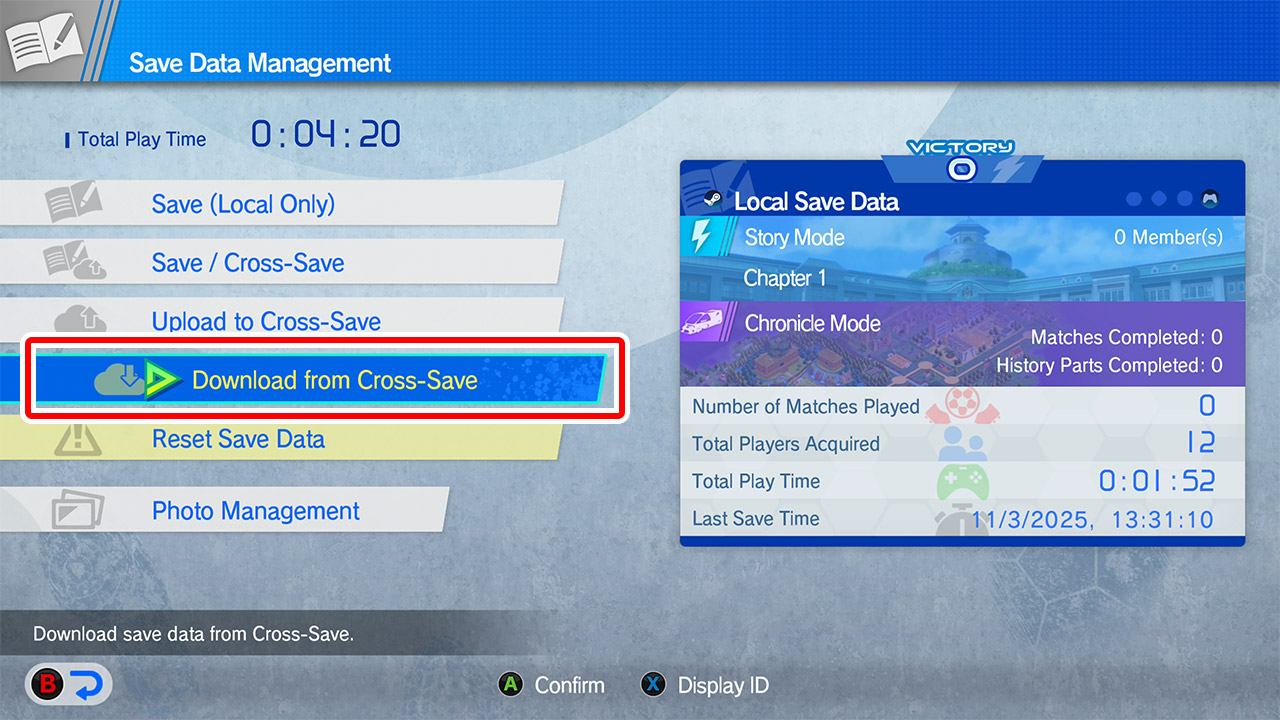
Once the Epic Games account linking is complete, your Cross-Save data will be detected. Press and hold the button to select "Yes" and complete loading the Cross-Save data.